Canvas Photo Collage
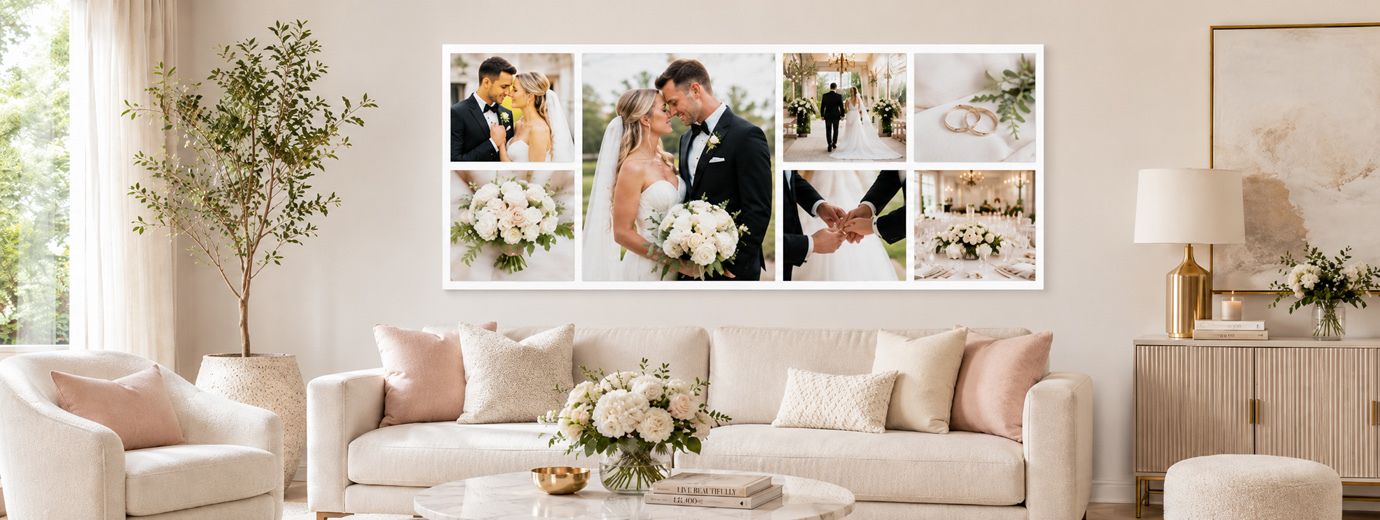
Design Your Canvas Photo Collage Online
Create a canvas photo collage in your own style with our online canvas collage maker. Explore hundreds of templates, add as many photos as you like, and personalise the text and background. This guide shows you how to choose your photos, use the editor and check your design before ordering.
Design It Yourself Online
Choose a template, upload your photos and edit the arrangement yourself.
Hundreds of Templates
Explore photo grids and themed collections, including Wedding, Birthday, Anniversary, Graduation and Baby.
Add Your Own Details
Personalise your collage with names, dates, a message and a background colour.
Choose Your Photo Count
Include as many photos as you like, then preview the complete design before ordering.
What Is a Canvas Photo Collage?
A canvas photo collage brings several photographs together in one printed canvas. In the online editor, you choose how those photographs share the space, from an equal-size grid to a layout with one main image and smaller supporting moments.
You can build your collage around:
- Family and travel memories
- Wedding and anniversary photographs
- Birthdays and graduation celebrations
- Baby milestones and children’s photos
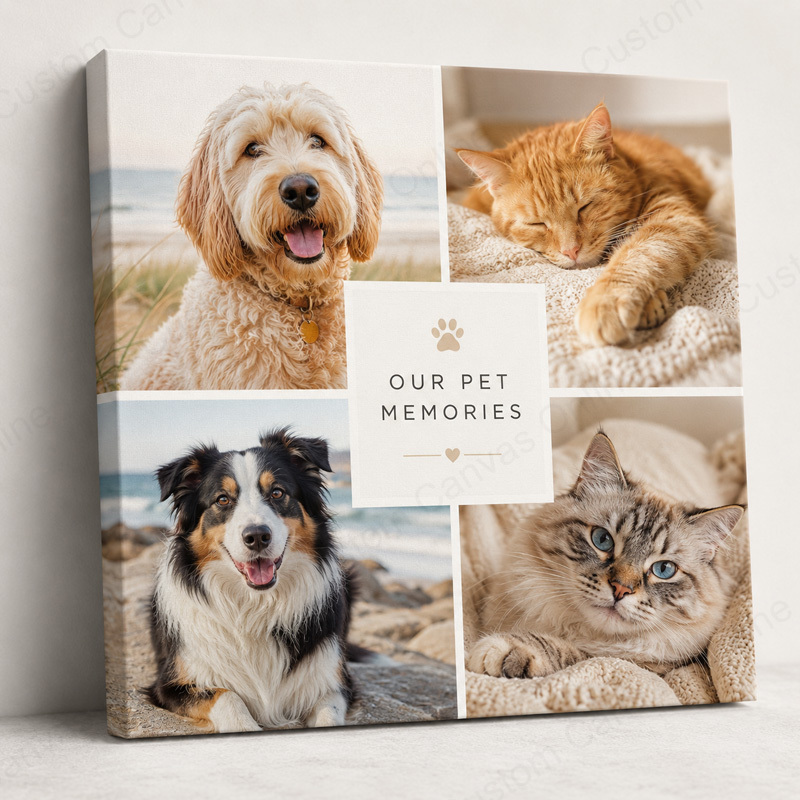
- Pet portraits and favourite everyday moments
Start with the photographs that matter most, then choose the layout, wording and background that help them work together.
Make the Design Your Own
Use the online editor to shape the collage around your photographs. These are the choices you can make before placing your order.
Photo count
Choose a listed count or use Custom for the number of photographs you want to include.
Templates and occasions
Explore hundreds of layouts and choose a theme in Template Collection.
Photo arrangement
Compare layouts, adjust each crop or use Free Arrange to position photos yourself.
Personalised text
Use + Text to add names, dates, captions or a favourite message.
Background colour
Choose a background that complements your photos and keeps text easy to read.
Complete preview
Review your photos, wording and overall design before adding the canvas to your cart.
The steps below follow the design-and-order process. You create and review your collage online before checkout.
How to Use the Online Canvas Collage Maker
Open a collage product and select Upload Photos & Design. Work through the choices below, then review the complete design before adding it to your cart.
Choose Your Starting Product
Open a two-, three-, four- or multi-photo collage product. These are starting points: you can change the photo count in the editor. Select Upload Photos & Design to begin.
Set the Size and Photo Count
Choose your canvas size and Portrait or Landscape orientation. In Photos, select a count or use Custom. Plan the space for faces and details as well as the overall size on your wall.
Explore Templates and Themes
Browse hundreds of templates. In Template Collection, explore Wedding, Birthday, Anniversary, Graduation and Baby styles. Compare the shape and size of the photo openings with your actual pictures.
Upload and Arrange Your Photos
Upload your photographs directly into the editor. Adjust each picture’s position and crop, checking faces and details near the edges. Use Free Arrange if you want to position photos yourself.
Personalise Text and Background
Use + Text for names, dates or a short message, and choose your background colour. Check spelling and contrast. Leave room around wording so it remains easy to read.
Review Your Design and Order
Check the complete preview, every crop and all wording. Confirm the canvas size, orientation and current price, then add the design to your cart and complete checkout.
Choose the Right Collage Canvas Style
These products offer different starting points for your design. The photo count can be changed in the editor. The images below illustrate possible arrangements; explore the available templates to find the one that suits your pictures.
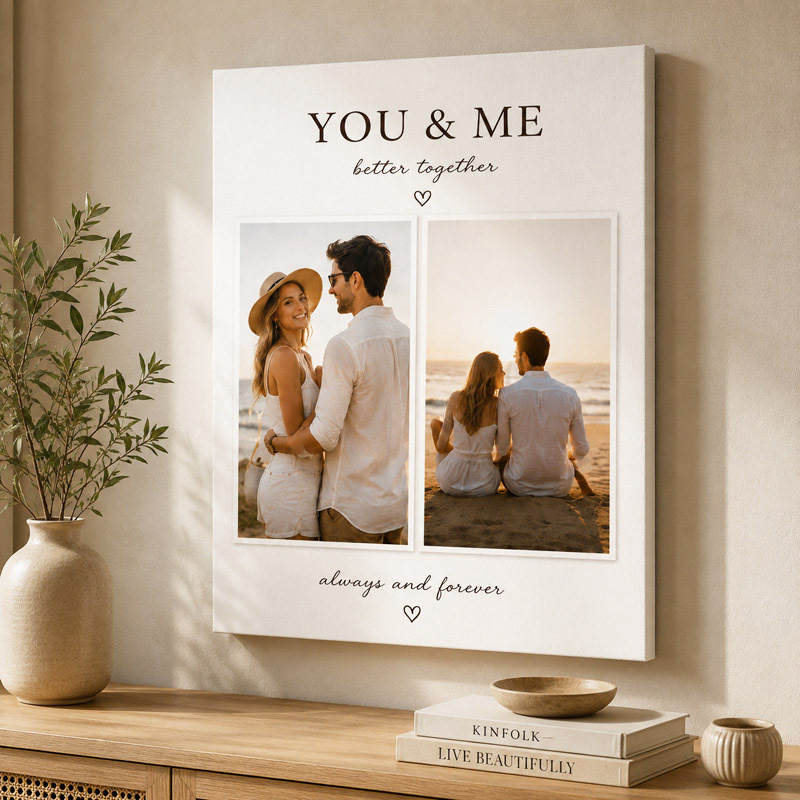
2 Photo Collage Canvas Print
Use two photographs when you want both moments to receive attention, such as a then-and-now pair or two portraits.
It works well for:
- Before and after photos
- Couple photos
- Parent and child photos
- Pet portraits
- Two favourite travel moments
- Anniversary gifts
Compare side-by-side and stacked arrangements. The best fit depends on the shape of both photographs and the crop you want to keep.
Create 2 Photo Collage Canvas Print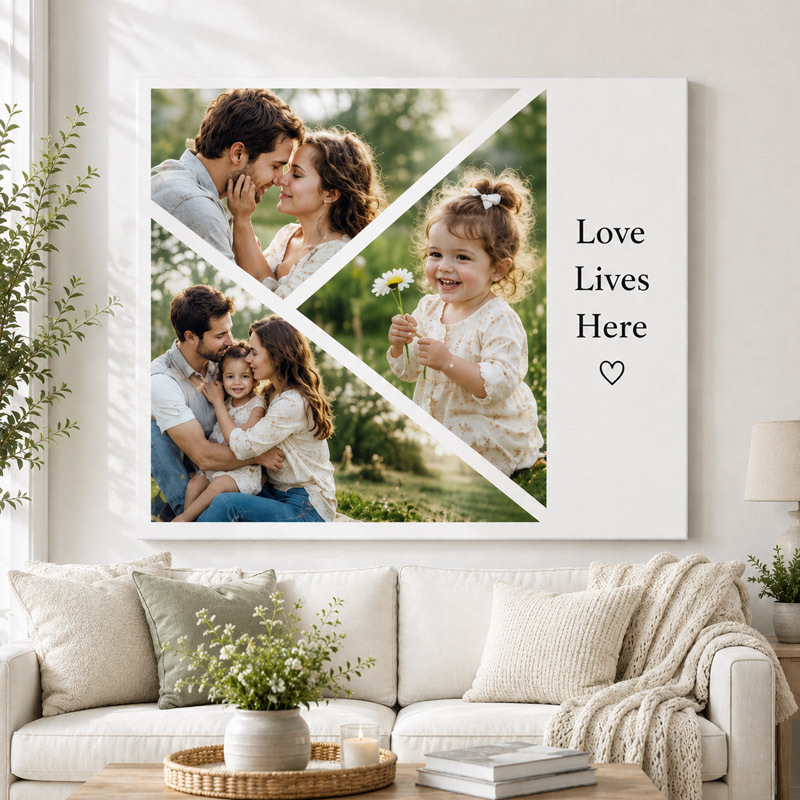
3 Photo Collage Canvas Print
Use three photographs to show a short sequence or combine one main image with two supporting moments.
It works well for:
- Wedding ceremony, portrait, and reception photos
- Baby growth milestones
- Three favourite family memories
- Three travel scenes
- Pet photos from different angles
Check whether the template gives all three photos equal space or makes one image larger. Choose the arrangement that matches their importance.
Create 3 Photo Collage Canvas Print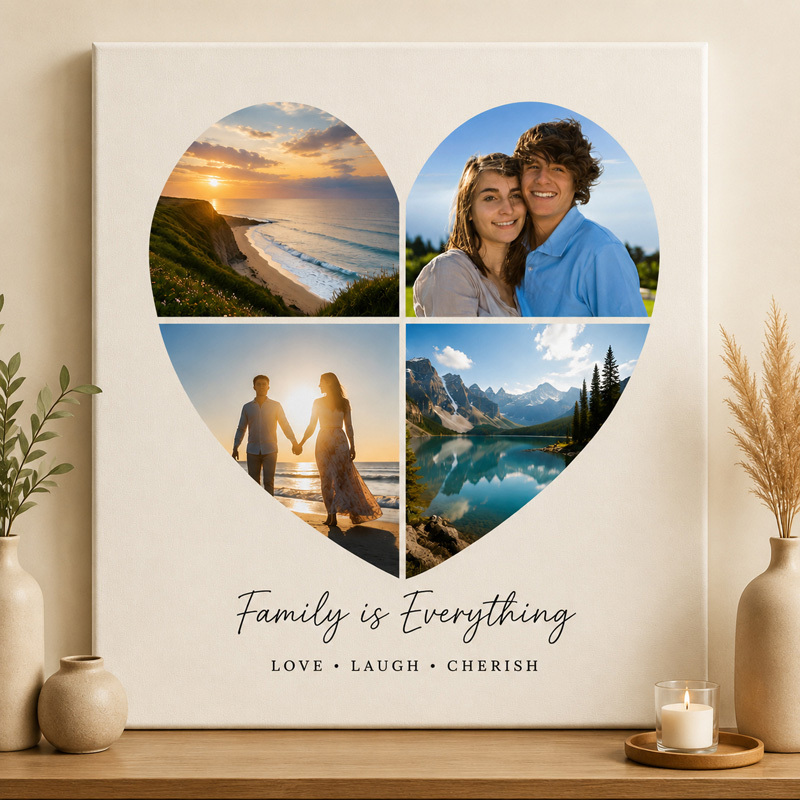
4 Photo Collage Canvas Print
Four photographs can form a regular grid or a design with different-sized openings. Compare both approaches with your portraits, wide scenes and group photos.
It works well for:
- Family portraits
- Wedding photos
- Baby photos
- Pet photos
- Holiday memories
- Home decor gifts
Check each photo area individually. A four-photo layout still needs enough space for the faces, details and wording you want to see.
Create 4 Photo Collage Canvas Print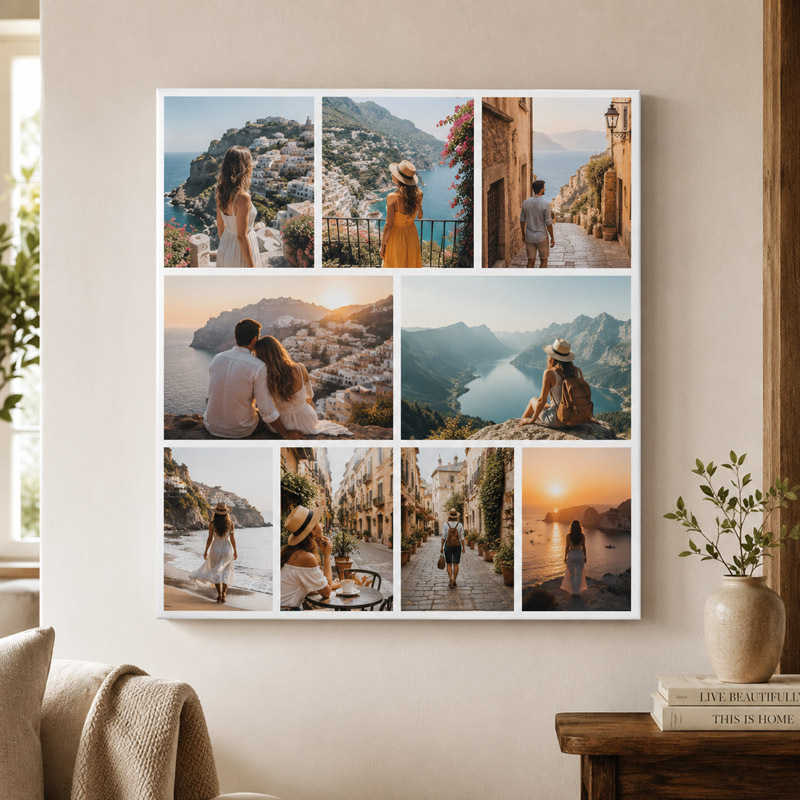
Multi Photo Collage Canvas Print
Use Multi Photo when you want a larger collection or a photo count of your choice. The Custom option lets you design around the photographs you want to include.
It works well for:
- Family photo collections
- Travel stories
- Wedding albums
- Graduation memories
- Baby’s first year
- Pet memory displays
- Large living room wall art
Choose a few key images first, then add supporting photographs. Compare the preview at your intended canvas size so important moments remain easy to recognise.
Create Multi Photo Collage Canvas PrintHow Many Photos Should You Use in a Canvas Photo Collage?
The online maker has no fixed photo-count limit. The examples below are composition ideas, not limits for each product or canvas size. Choose the number around the photographs you want to display and how large each one needs to appear.
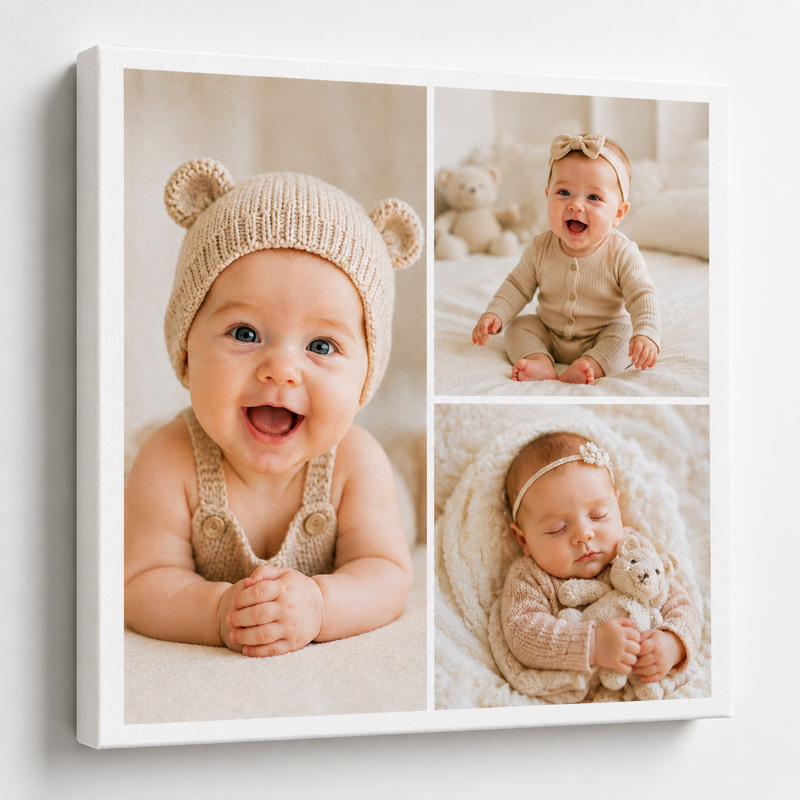
2–3 Photos: Give Each Moment Space
A smaller collection lets you focus attention on each photograph. Compare the layout’s photo openings with your images, especially when mixing portraits and wide scenes.
Good for:
- Couple gifts
- Wedding highlights
- Baby milestones
- Pet portraits
- Small to medium canvas sizes
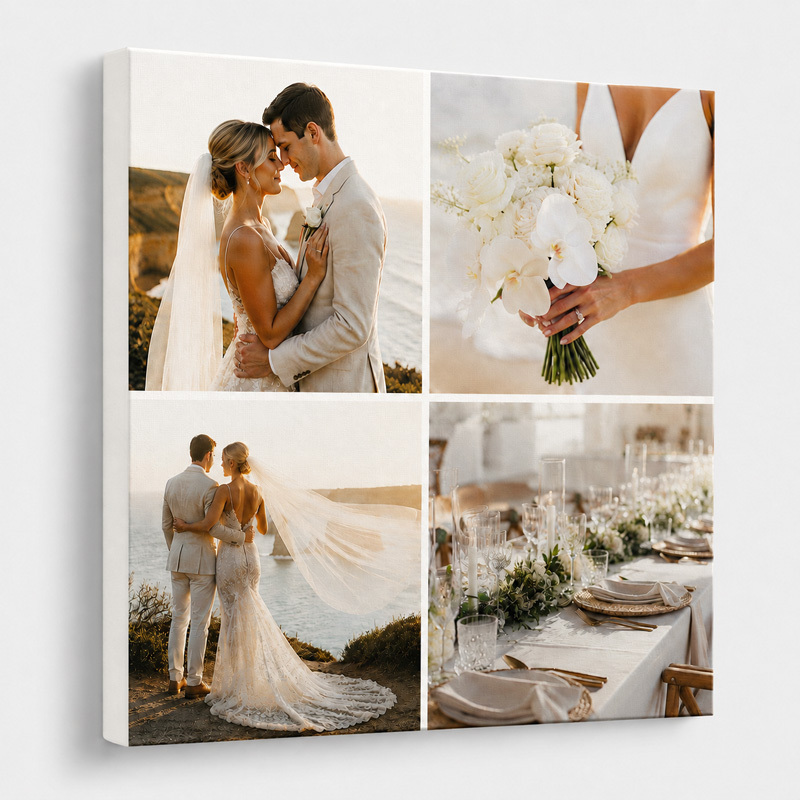
4 Photos: Compare Grids and Feature Layouts
An equal grid gives the photographs similar emphasis. A layout with one larger opening can draw attention to a main image. Check both the crop and the space for each person.
Good for:
- Family photo canvas
- Wedding collage canvas
- Birthday gifts
- Home wall art
- Bedroom decor
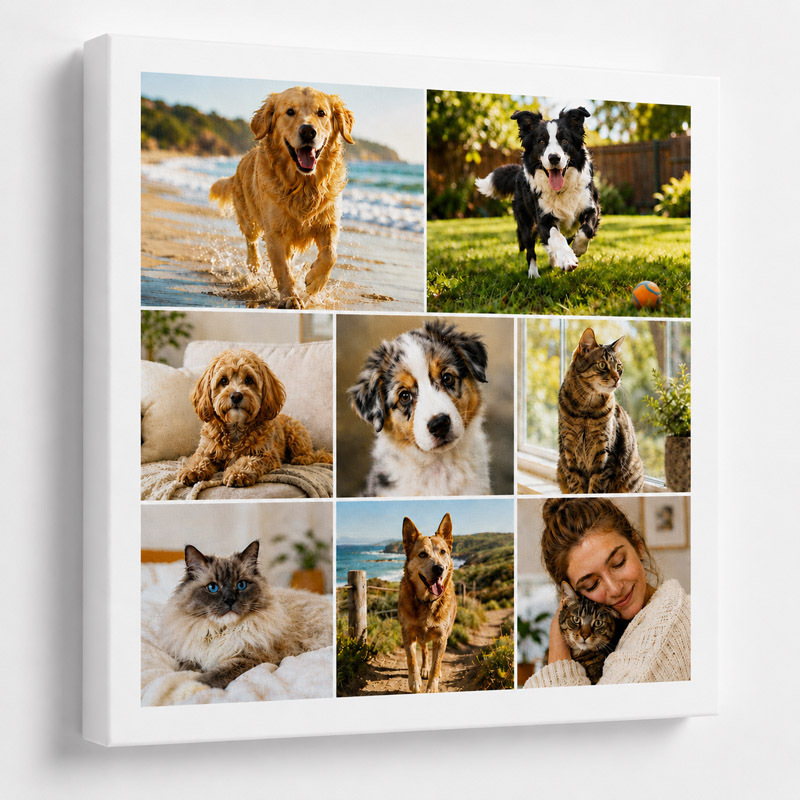
5–9 Photos: Build a Short Story
Choose distinct moments rather than several near-identical pictures. Include a mix of portraits, scenes and details, then check whether any image has become too small to enjoy.
Good for:
- Travel collage canvas
- Family holidays
- Baby’s first year
- Engagement and wedding memories
- Pet photo collections
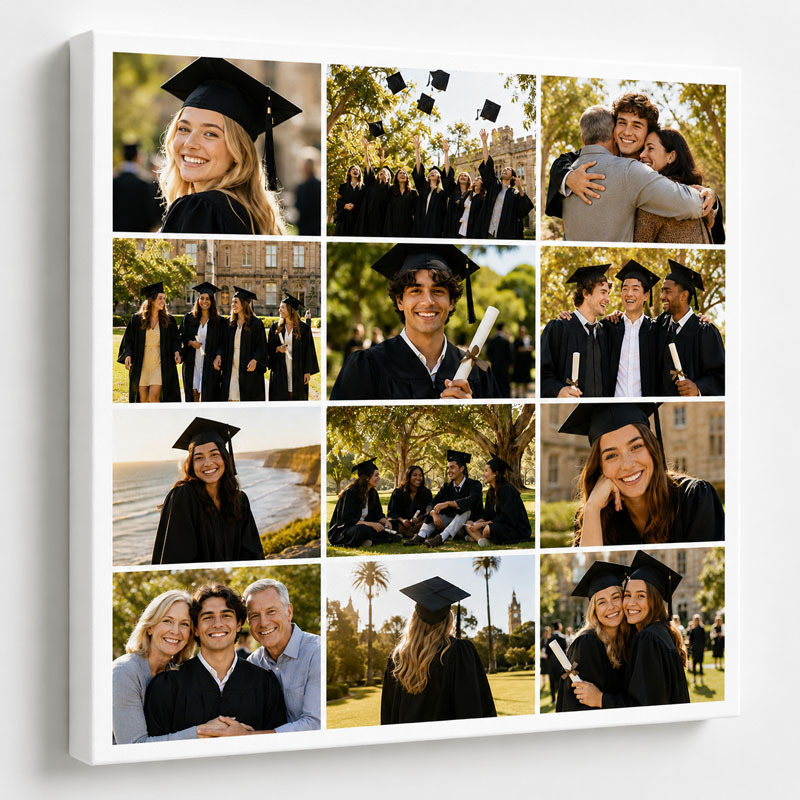
10+ Photos: Memory Collection
A larger collection can bring together a holiday, a year or a celebration. Compare the canvas size and layout carefully, particularly if several photographs contain groups or small details.
Good for:
- Large living room wall art
- Anniversary gifts
- Graduation memories
- Family history
- Travel collections
Planning tip: More photographs share the same physical canvas area. A larger size can give each photo more room, but it will not correct blur or missing detail in an original file.
Canvas Photo Collage Ideas for Every Memory
Choose Wedding, Birthday, Anniversary, Graduation or Baby in Template Collection, then personalise the design. For a birthday, try pictures from different ages; for an anniversary, pair earlier and recent memories; for graduation, combine the portrait, family and friends with a name and year. The examples below offer more ideas for choosing your photographs.
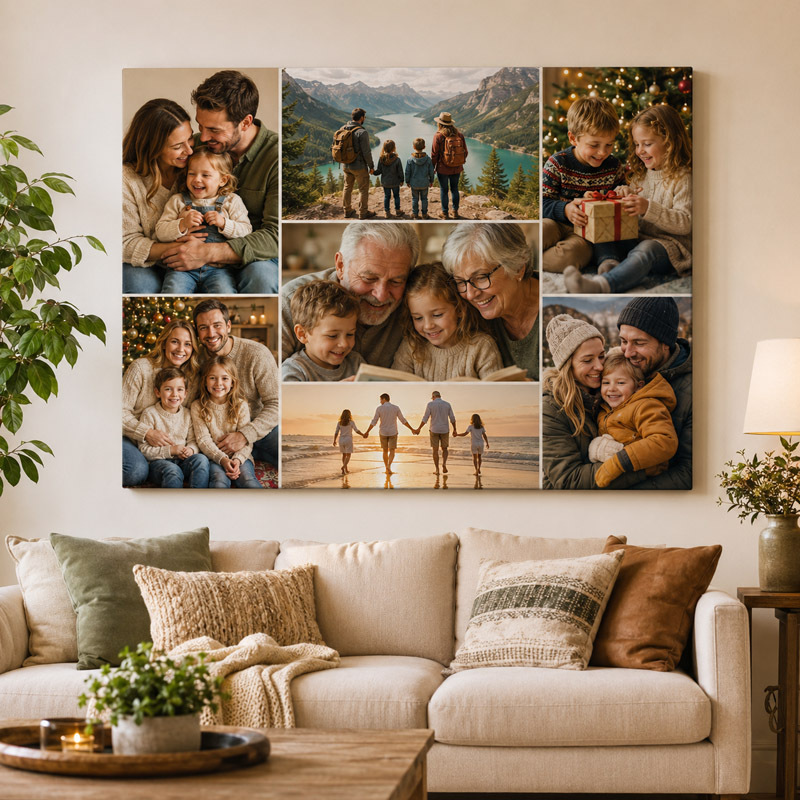
Family Photo Collage Canvas
Combine family portraits, candid moments and different generations. Give an important group photo enough space for everyone to be recognised, then use smaller images for supporting memories.
Best photos to use:
- Smiling family portraits
- Parents with children
- Holiday memories
- Outdoor lifestyle photos
- Grandparents and grandchildren
- Special family celebrations
Try a family name, a year or a short caption. Choose a background that connects the photographs without drawing attention away from them.
Read: How to Create a Family Photo Collage on Canvas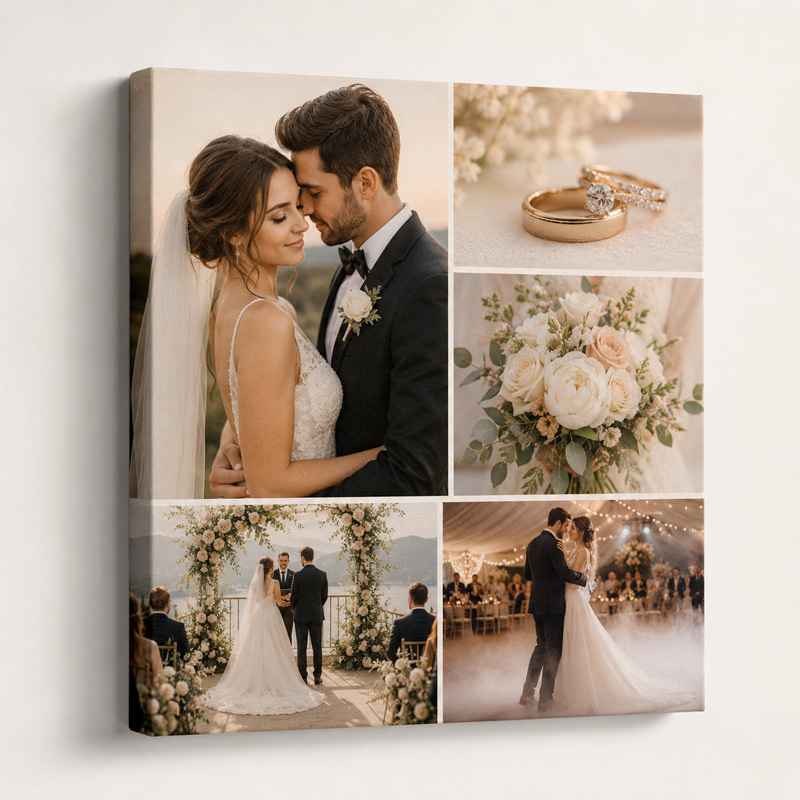
Wedding Collage Canvas
Choose the Wedding collection to explore themed layouts, then decide whether a portrait of the couple, the ceremony or a shared moment should be the focal point.
Good photos to include:
- Portrait of the couple
- Ceremony moment
- Rings or bouquet detail
- First dance
- Family wedding photo
- Reception celebration
Add names and the wedding date if you wish. Keep wording clear of faces, and compare detailed group shots with the simpler portraits around them.
Read: Wedding Canvas Collage Ideas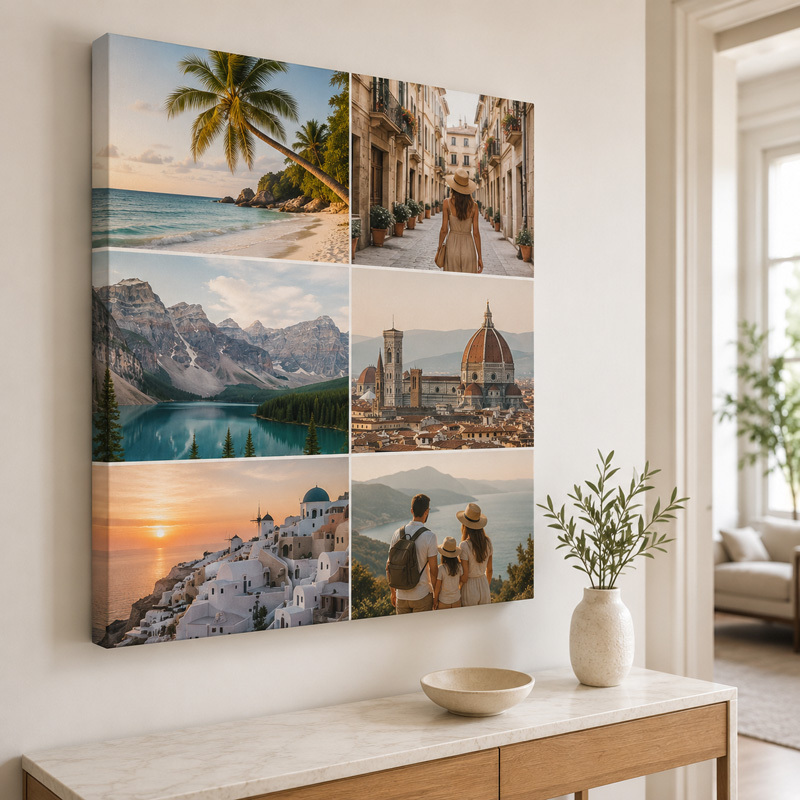
Travel Collage Canvas
A travel collage canvas helps turn your favourite trips into wall art. You can combine landscapes, city views, beach photos, mountain scenes, and couple or family travel moments.
Good photos to include:
- Scenic views
- Landmarks
- Beach or mountain photos
- City streets
- Travel portraits
- Sunset moments
Travel collage canvas prints work beautifully in living rooms, offices, hallways, and holiday homes.
Read: Travel Collage Canvas Ideas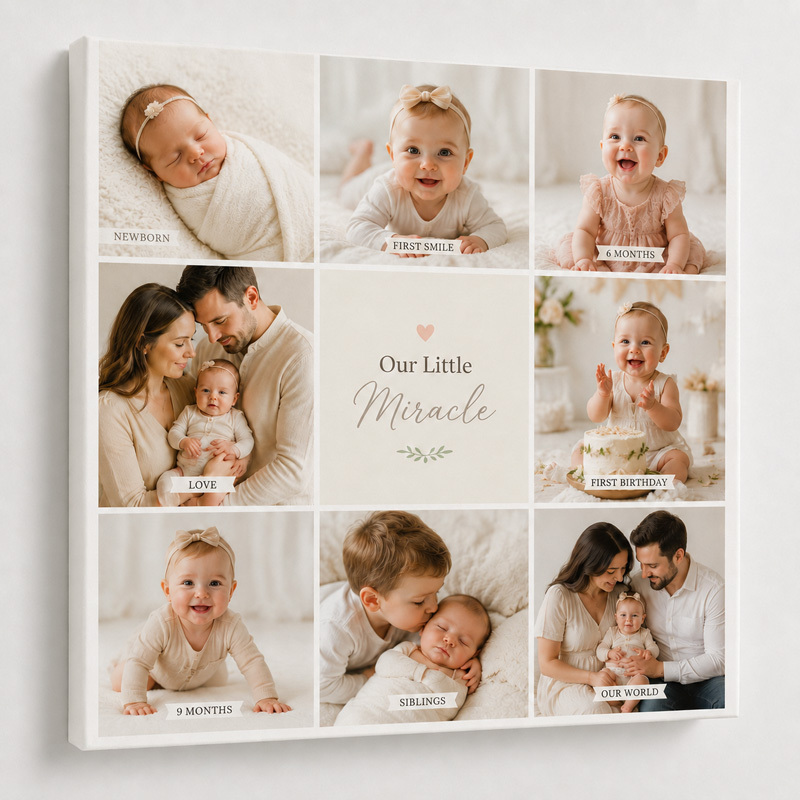
Baby and Kids Collage Canvas
A baby collage canvas is perfect for showing growth, milestones, and special family moments.
Good photos to include:
- Newborn photo
- First smile
- First birthday
- Parent and baby photo
- Sibling photo
- Favourite candid moments
Explore the Baby collection, then add a name, birth date or milestone caption. Choose colours and a layout that suit the photographs; soft backgrounds are one option.
Read: Baby and Kids Collage Canvas Ideas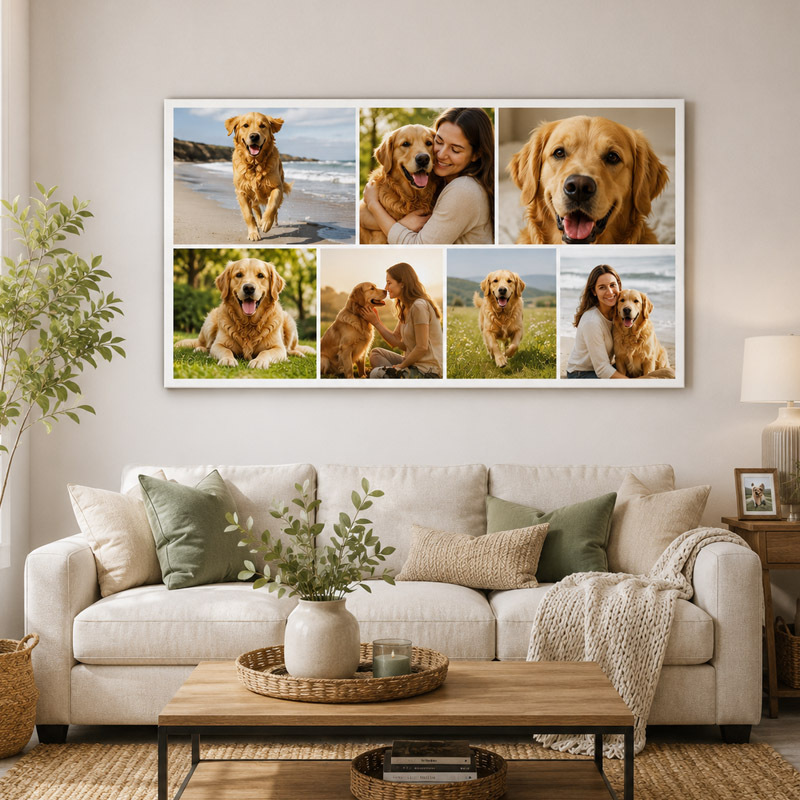
Pet Photo Collage Canvas
A pet collage canvas is a lovely way to celebrate a dog, cat, or other beloved pet.
Good photos to include:
- Close-up portrait
- Outdoor play photo
- Funny expression
- Pet with family
- Favourite resting spot
- Memory photo
For pet collages, choose clear photos where the face and eyes are sharp.
Read: Pet Photo Collage Canvas Ideas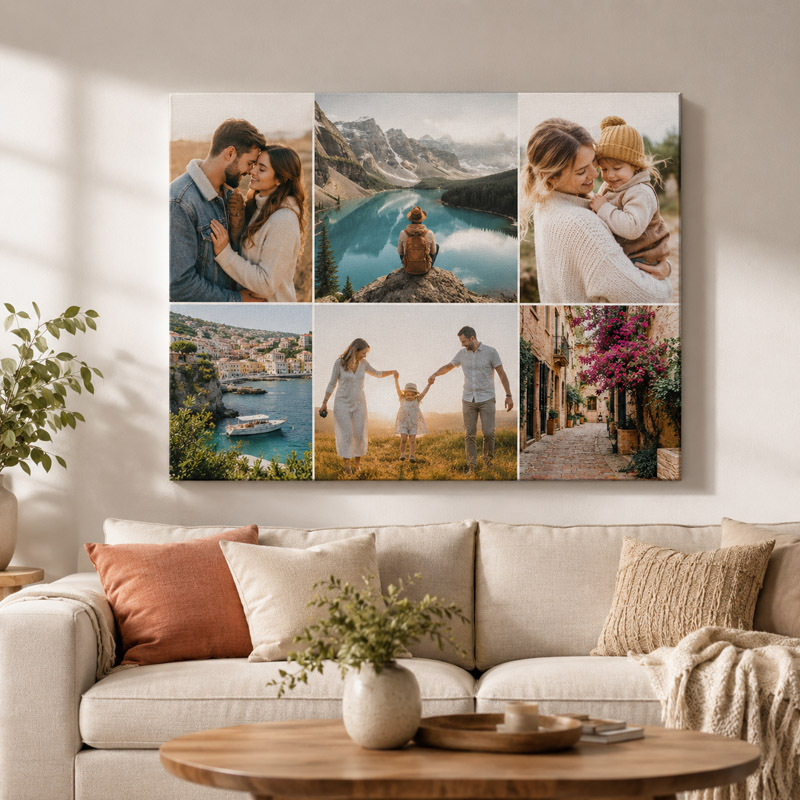
Living Room Canvas Collage
A living room canvas collage is a great way to turn your favourite memories into a feature wall. It can make a blank wall feel warmer, more personal and more connected to your family story.
Good ideas to include:
- Family portraits
- Wedding memories
- Travel highlights
- Baby and kids photos
- Pet photos
- Seasonal family moments
Measure the intended space above your furniture and mark the proposed canvas outline. Check that both the whole artwork and its individual photos suit the viewing distance.
Read: Canvas Collage Ideas for Living Room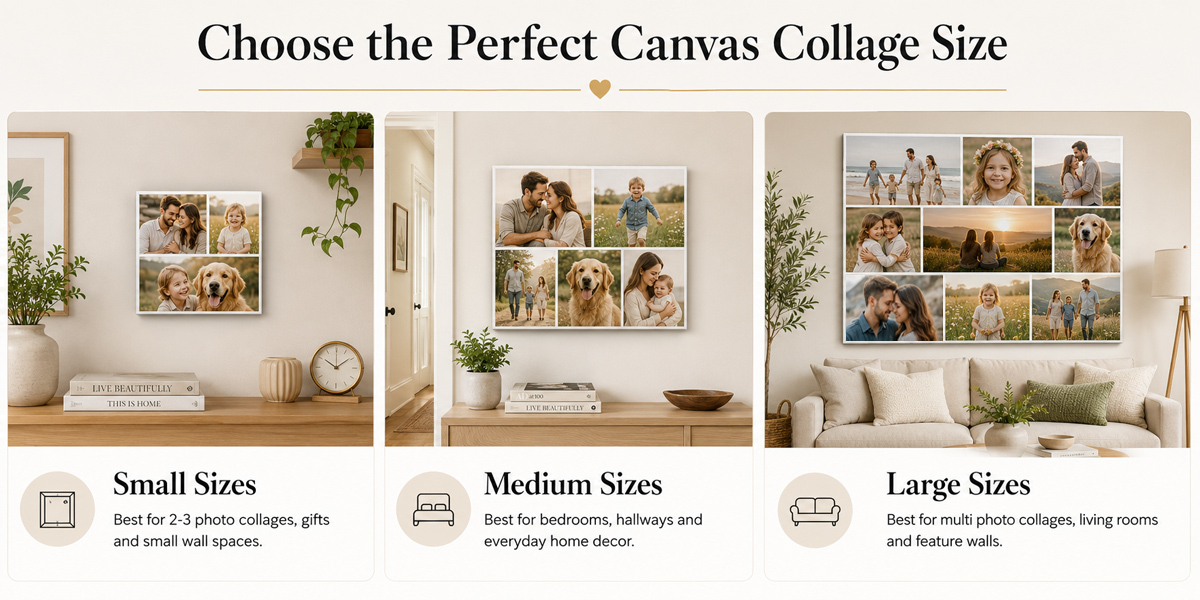
Room examples are illustrative. Choose the dimensions and photo areas for your own photographs rather than using a fixed photo-count rule.
How to Choose the Right Canvas Collage Size
Measure your wall space in centimetres, then consider the photo openings inside the design. Canvas size describes the complete print. Each photograph, any gaps and your text share that space.
For a Compact Display
Try fewer, stronger images or a simple design when the canvas will be viewed in a small space. Check that faces and wording remain large enough to read.
Check before choosing:
- Measure the available width and height
- Prioritise the people or details you want to see
- Check the crop in each photo opening
Compare the Space for Each Photo
For example, the 40 × 60 cm option in Landscape is 60 cm wide × 40 cm high. Before gaps and edge allowance, an equal four-photo grid divides that into four areas of 30 × 20 cm.
Example notes:
- This is an ideal equal-division example
- Actual templates may use different-sized openings
- Allow room for any text and background
For a Larger Collection or Wall
A larger canvas can give more room to individual photos or a main image. Compare both the overall dimensions and the detail available in your source files.
Check before choosing:
- Mark the proposed outline on the wall
- Consider the normal viewing distance
- Recheck groups, faces and small details
Compare the current dimensions on your chosen product page. If you need a size that is not listed, contact us with your required width and height in centimetres for a custom-size quote.
Read: How to Choose the Perfect Canvas Collage Size for Your Home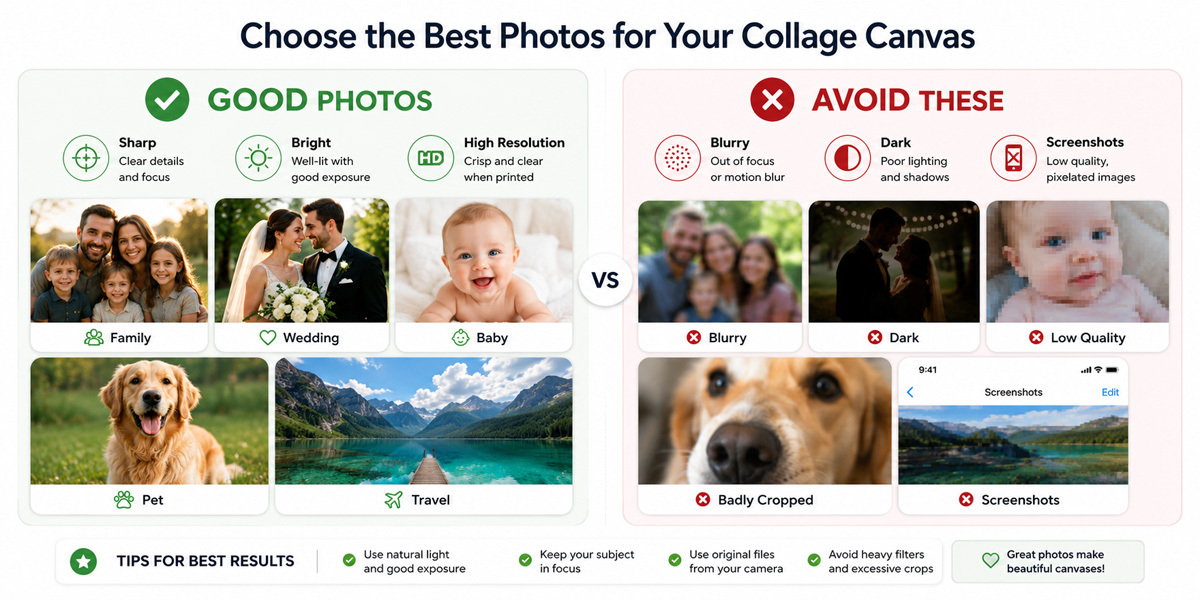
Check visible detail in each original file. Deliberately dark photographs can still work when the important subject remains clear.
How to Choose the Best Photos for Your Collage Canvas
Choosing the right photos helps your canvas photo collage look clearer, cleaner and more professional. You do not need perfect photos, but a few simple tips can make a big difference to the final print.
Use Clear, High-Resolution Photos
Original photos from your camera or phone usually give the best result because they keep more detail for printing.
Keep Important Details Visible
Check that faces and important details are visible in the light and dark areas. An intentionally dark photograph can work well when the subject remains clear.
Avoid Blurry or Out-of-Focus Images
If a photo looks soft, shaky or out of focus on your screen, it may look even less sharp when printed on canvas.
Keep Important Faces Away From the Edge
Reposition each photograph in its opening and check the crop. Leave room around heads, people at the ends of groups and other details you want to keep.
Mix Close-Up and Wide Photos
A good collage often includes a mix of portraits, full-body photos, detail shots and scenery so the design feels more interesting.
Make Colour Choices Deliberately
Similar lighting can help photographs work together, but different ages, colours or styles can also tell a story. Review the set together and decide whether the contrast feels intentional.
Common Canvas Collage Mistakes to Avoid
A canvas photo collage should feel balanced, clear and meaningful. Avoiding a few common mistakes can help your final collage canvas print look more professional and easier to enjoy on your wall.
Using Too Many Photos on a Small Canvas
Too many photos can make a small canvas look crowded. Choose a larger size if you want to include many memories.
Choosing Low-Quality Screenshots
Screenshots or compressed images may look fine on a phone, but they can appear soft or pixelated when printed on canvas.
Overlooking Uneven Brightness
One very bright image can draw attention away from the intended main photo. Reposition the images or try a different arrangement if the balance does not suit your story.
Placing Faces Too Close to the Edge
Faces near the edge may be affected by cropping during layout. Leave enough space around important people or details.
Not Thinking About Where the Canvas Will Hang
A collage for a living room feature wall may need a larger size than one for a hallway, bedroom or small gift space.
Ignoring Text and Background Contrast
Check that lettering is easy to read against the background. Use spacing deliberately: a design with visible gaps and a seamless arrangement can both work.
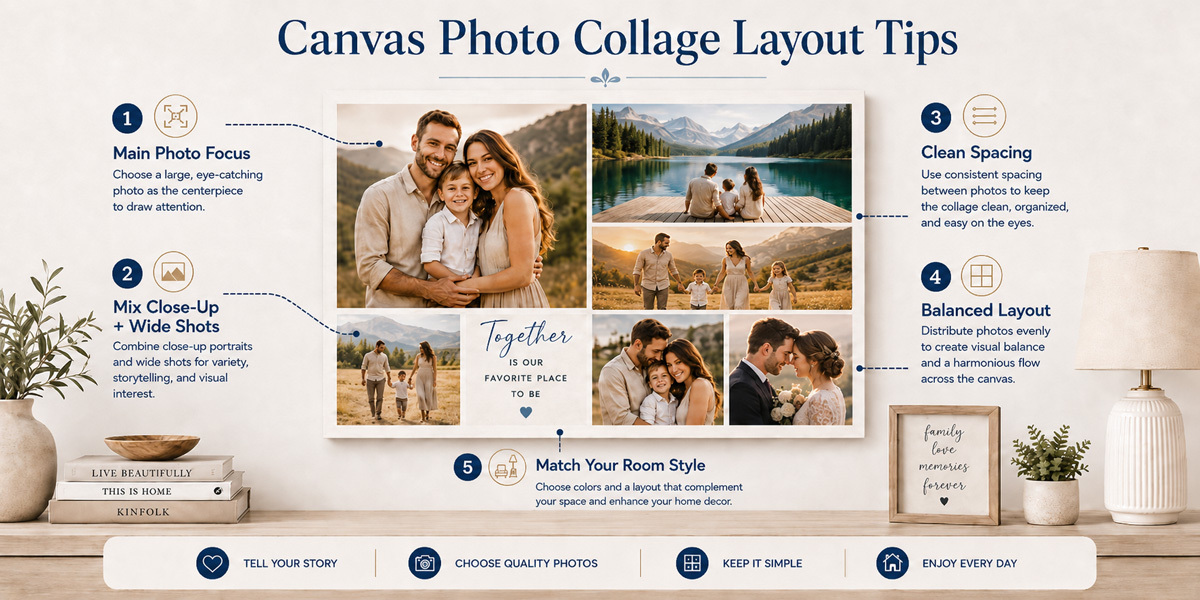
This illustration shows one approach to layout. Choose the emphasis, spacing and colour treatment that suit your photographs.
Canvas Photo Collage Layout Tips
A good canvas collage is not only about placing photos together. The layout plays a key role in creating balance, focus and visual harmony in your final wall art.
Decide Which Photo Leads
Choose a larger main image when you want one moment to lead the story. An equal grid is an option when the photographs should receive similar attention.
Mix Close-Up and Wide Images
Combine portraits, detail shots and landscapes for better storytelling.
Choose Spacing Deliberately
Compare visible gaps with a seamless layout. Keep any repeated spacing consistent so the arrangement feels intentional.
Keep Layout Balanced
Review where your eye goes first and whether that matches your intended focus. Both symmetrical grids and deliberately uneven arrangements can work.
Choose Text and Background Together
Use a readable text colour against the background and keep enough space around names, dates or a message.
Choose the Right Canvas Size
More photos usually need a larger canvas size to keep the layout clear and balanced.
Not sure which layout to choose?
Start with your actual photos, select a size and compare several templates in the editor. Check which arrangement preserves the crops and emphasis you want.
Create Your Canvas Photo CollageWhere to Display Your Canvas Photo Collage
Choose the position before settling on a size. Mark the proposed outline on the wall, then consider where you will normally stand or sit to look at the photographs.
Living Room
Measure the clear space above your sofa or console. Check whether the main faces and smaller photographs will be easy to recognise from your usual seat.
Bedroom
Consider the wall space around your bed or other furniture. If you include names or a message, plan for the distance from which you want to read them.
Hallway
Check the canvas outline from the points where people will pause or pass. A close viewing position may let smaller photographs play a more visible role.
Home Office
Choose a position where the artwork can be seen around your desk and shelving. Match the overall canvas size and photo detail to the available wall space.
Your Final Canvas Collage Checklist
Before adding your design to the cart, review these six points. Use the complete preview alongside your selected canvas dimensions.
Photo Crops
Check every photo opening, including heads, people at both ends of groups and any details close to the edges.
Size and Orientation
Confirm the complete canvas dimensions in centimetres and the chosen Portrait or Landscape orientation.
Names, Dates and Spelling
Read each word carefully, including names, birthdays, anniversary dates and graduation years.
Text and Background
Check that the lettering contrasts with the background and has enough space to be read at the intended display size.
Image Detail
Review the quality of each original, particularly any photograph that has been cropped closely or made larger.
Complete Design and Price
Make sure the intended photographs are included, the arrangement is complete and the selected product and current price match your choices.
Ready to Create Your Canvas Photo Collage?
Choose a collage product, select Upload Photos & Design and create your layout online. Upload your photos, personalise the text and background, then review the complete preview before adding the canvas to your cart.
Shop Collage Canvas PrintsCanvas Photo Collage FAQs
Have questions before creating your canvas photo collage? Here are the most common answers to help you choose the right layout, photo count and ordering process.
A canvas photo collage combines several photographs within one printed canvas. The dimensions you select describe the complete artwork, including all photo areas, background and any text.
Yes. Open a collage product and select Upload Photos & Design. You can choose from hundreds of templates, upload and arrange your photos, personalise text and background, and preview the complete design before ordering.
You can start with a ready-made template and personalise it with your photographs. Try different layouts with your images, adjust each crop and review the complete preview. Free Arrange is available when you want to position photos yourself.
There is no fixed photo-count limit. Choose a listed count in Photos or use Custom for the number you want. Then choose a canvas size and layout that give important faces and details enough room.
Compare your actual photographs with the template openings. Check portrait and landscape shapes, the space for group photos and whether one image should be larger. The right layout keeps the details and visual emphasis you want.
Yes. In Template Collection, explore Wedding, Birthday, Anniversary, Graduation and Baby designs. Use + Text to add your wording and choose a background colour. Check names, dates, spelling and text contrast in the complete design.
Use original files or full-resolution downloads where possible. Check each photograph for focus and visible detail, particularly after cropping. Increasing the canvas size will not correct blur in the original file.
Open your chosen product and select Upload Photos & Design. Upload the photographs directly into the editor before checkout, then arrange them in your selected template and review each crop.
Review the design in the online editor before adding it to your cart. Check the complete arrangement, every photo crop, all wording, canvas size and orientation, then continue to checkout when you are happy with your choices.
Contact us with your intended canvas size, photo count and the people or details you want to keep. For a photo check, email original files to our team or include a download-enabled link in your enquiry. If you need an unlisted canvas size, include the required width and height in centimetres.
Create Your Custom Canvas Photo Collage Today
Bring your photographs together in your own style. Explore the templates, edit the details and preview your canvas collage before ordering.
Choose Your Canvas Collage