Collage Canvas Prints
- Product
- Qty in Cart
- Quantity
- Price
- Subtotal
-

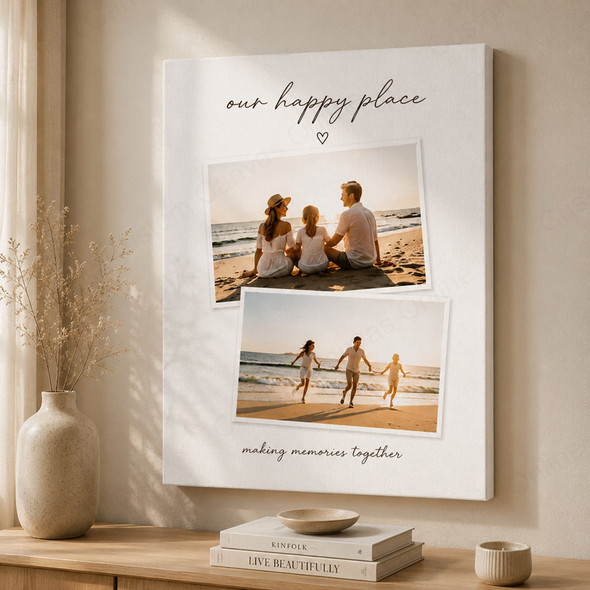 MSRP: $252.00$23.52
-

 MSRP: $252.00$23.52
-

 MSRP: $252.00$23.52
-

 MSRP: $252.00$23.52
Online Canvas Collage Maker
Create Your Own Canvas Collage
Bring your favourite photos together in one personalised canvas print. Explore hundreds of templates in our online canvas collage maker, add as many photos as you like, and make the design your own with text and backgrounds. Edit it yourself and preview the complete collage before ordering.
Open your chosen product, then select Upload Photos & Design to launch the online editor.
Make It Yours in the Online Designer
Start with a template, then shape the design around your photographs. The online editor lets you choose the photo arrangement, personalise the wording and change the background, so the finished collage reflects your style.
Hundreds of Templates
Compare simple grids and occasion-based designs. Choose a layout that works with your mix of portraits, landscapes and group photos, rather than forcing every image into the same shape.
No Fixed Photo Limit
Include as many photos as you like. Choose a listed photo count or use the Custom option, then arrange your collection. Give the most important faces and details enough space.
Your Text and Background
Add names, dates, a title or a favourite message. Choose a background colour that suits the photographs, then check that your wording remains easy to read against it.
Choose a Starting Collage
Choose a starting product below. The names describe an initial photo count, not a fixed limit: you can change the count and explore templates in the editor.
2 Photo Collage
For a pair of portraits, two places or a then-and-now story. Give both photographs space and compare how the layout crops each one.
3 Photo Collage
For three distinct moments or a short visual story. Compare the photo positions and decide whether one image should take the lead.
4 Photo Collage
For four portraits, a family occasion or a compact set of highlights. Check that faces remain clear when a picture contains a group.
Multi Photo Collage
For a larger collection or a photo count of your choice. Use the Custom option to build around the photos you want to include.
Find a Style for Your Occasion
Explore Wedding, Birthday, Anniversary, Graduation and Baby in Template Collection. Choose a style, then personalise its photos, wording and background. These ideas can help you decide what to include.
Wedding
Build around a favourite portrait of the couple, with ceremony, family and celebration photos supporting it. Add names and the wedding date; keep group portraits large enough for faces to show.
Birthday
Tell a story across the years or gather highlights from one celebration. Add a name, age or short message, and choose a background that complements the photographs.
Anniversary
Combine an early photograph with recent moments and places you have shared. Names, an anniversary date or a few meaningful words can connect the collection.
Graduation
Pair a graduation portrait with family, friends and moments from the day. Include the graduate's name and year, leaving clear space around the wording.
Baby
Bring together newborn portraits, tiny details and first-year milestones. Add a name or birth date, and balance close-ups with wider photographs so the collection has variety.
Make Room for Every Photo
You can add as many photos as you like, but the canvas still has a fixed physical size. Choose the size and layout together so important faces and details have enough room.
Size comparison: the 40 × 60 cm option in Landscape is 60 cm wide × 40 cm high.
Two Photos, Side by Side
Four Photos in a Grid
Illustrations show equal divisions before gaps and edge allowance. They explain photo areas; available templates and usable image space vary with the design.
Here, each four-photo space has half the area of a two-photo space. A busy collage may need a larger canvas to make individual photographs easier to recognise.
If a face or detail looks too small, try another arrangement, a larger canvas or fewer photos. Enlarging the canvas does not correct blur in the original files.
Not sure which collage to choose? Our canvas photo collage guide will help you pick the right layout, number of photos and canvas size before ordering.
Check Your Design Before Ordering
Review the actual photographs in your chosen template. The shape of the whole canvas does not tell you the shape of every photo space.
Keep Important Details
Check each crop: people at both ends of a group, the space above heads and details near the edges. Try another template if a tall portrait or wide scene loses too much.
Use Your Best Files
Choose originals or full-resolution downloads where possible. Check each photo for blur, especially after cropping. Older photos can work alongside recent ones when their size and position suit their detail.
Read the Whole Design
Check names, spelling and dates. Make sure text stands out from its background, faces are recognisable and one bright image does not unintentionally dominate the collage.
From Photos to Your Canvas Print
1. Open the Maker
Choose a collage product and select Upload Photos & Design. Set your canvas size and photo count, then explore the available templates.
2. Make It Personal
Upload and arrange your photos. Choose an occasion collection if you wish, add your text and adjust the background to suit your design.
3. Preview and Order
Review the complete collage, including every crop and word. Confirm your canvas size and current price, then add your design to the cart.
Collage Canvas Questions
Make a Canvas Collage That Is Yours
Choose a starting product, open the online designer and bring your photos together in your own style. Explore the templates, personalise the details and check the complete preview before ordering.